How to Connect to an Iran IP on macOS Using L2TP

Note:

vpn iran is intended for Iranians living abroad and is not a censorship-bypass tool. This service is guaranteed to provide access to mobile banking, internet banking, websites, applications, and all Iranian systems from outside the country.

vpn iran Accessible on All Devices

Financial accounts have access to banks and all other websites. They also open all Iranian websites and payment gateways.

Non-financial accounts do not have access to banks. However, they can open all Iranian websites.

Payment is available via cryptocurrency, Shaparak, card-to-card transfer, Visa, and MasterCard.

Financial Account Pricing

180،000 IRT
500،000 IRT
900،000 IRT
1،600،000 IRT

Non-Financial Account Pricing

55،000 IRT
145،000 IRT
285،000 IRT
495،000 IRT

To connect on Apple laptops, please follow the steps below.

Note: Due to differences between macOS versions, the images may look slightly different from what you see on your laptop. However, the settings and steps are generally the same on all Apple laptops.

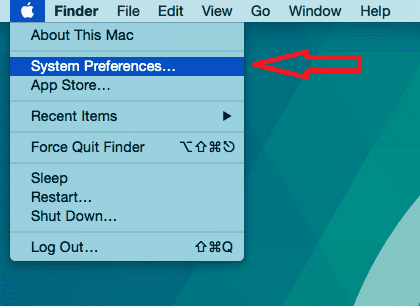
Step 1: As shown in the image below, click on the Apple icon in the top corner of the screen, then select System Preferences from the menu.
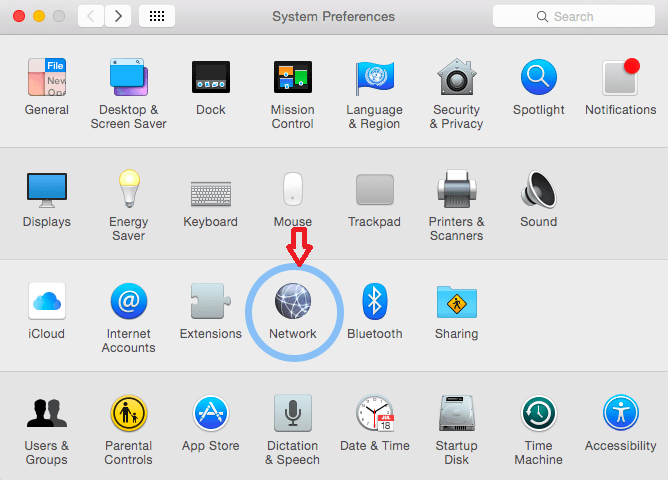
Step 2: Click on the Network icon.
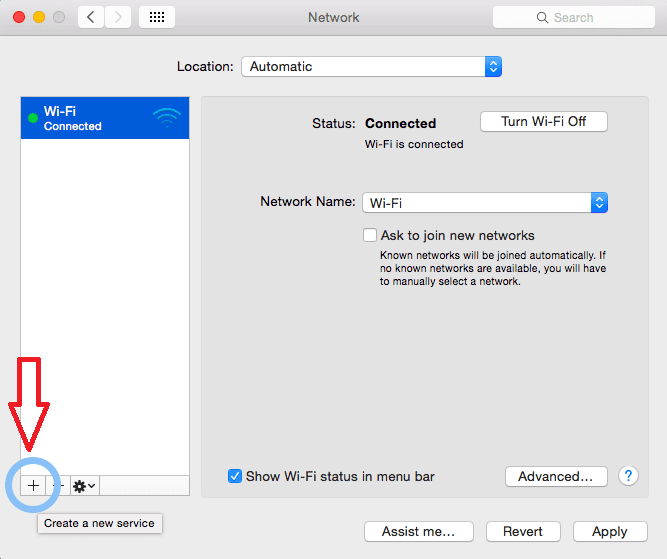
Step 3: Click the (+) button in the bottom-left corner of the window.
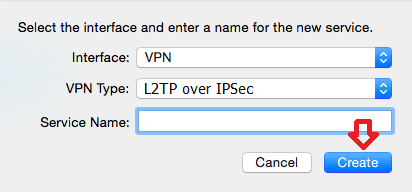
Step 4: As shown in the image below, set Interface to VPN and VPN Type to L2TP over IPsec. In the Service Name field, enter vpn-iran.com, then click Create.
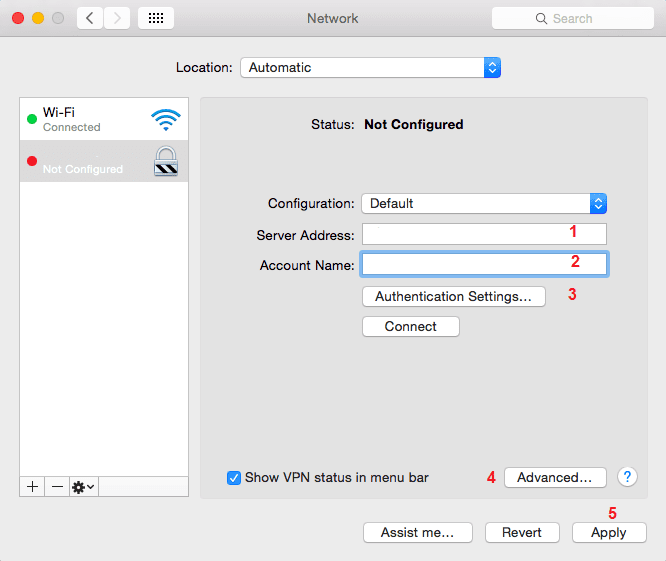
Step 5: Configure the settings according to the numbered sections in the image below:

1: Enter one of the following server addresses:

Server Address 1: 78.157.57.92

Server Address 2: 78.157.57.93

Financial Account Server Address:

2: In the Account Name field, enter the username you received from the store.

3: Click Authentication Settings.
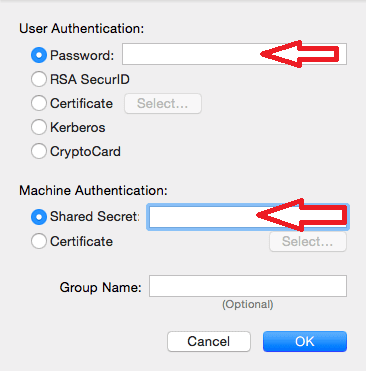
In the Password field, enter the password provided by the store, then enter 12345678 in the Shared Secret field and click OK.

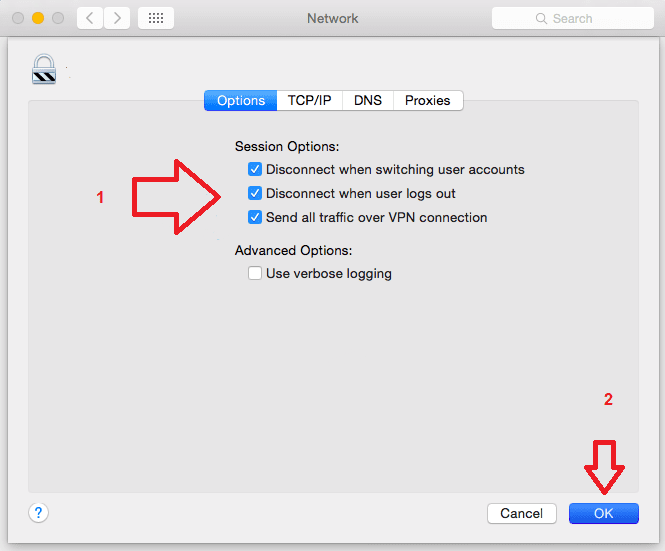
4: Click Advanced, check Send all traffic over VPN connection, then click OK.

5: Click Apply.

Important: Please make sure to enter all required information including server addresses, Shared Secret, username, and password using English letters and numbers only.
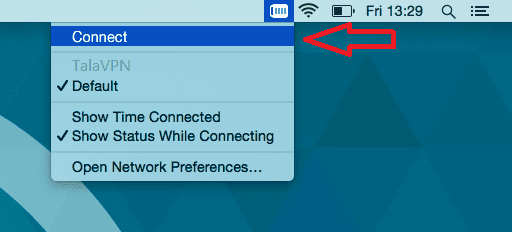
Step 6: As shown in the image below, connect using the VPN connection you created. You can now start using your service.
How to Connect to an Iran IP on macOS Using L2TP-min

Leave a Reply

Your email address will not be published. Required fields are marked *

VPN Server Uptime Status

نام سرور وضعیت 24ساعت 7روز 30روز 365روز
سرور اپن وی پی ان - غیر مالی s2.vpn-iran.com ✅ آنلاین 100.000% 76.583% 84.988% 85.519%
سرور اپن وی پی ان - غیر مالی s1.vpn-iran.com ✅ آنلاین 100.000% 73.721% 84.283% 84.834%
سرور اپن وی پی ان - مالی sbank.vpn-iran.com ✅ آنلاین 100.000% 68.374% 83.160% 83.759%
سرور سیسکو - غیر مالی s3.vpn-iran.com ✅ آنلاین 100.000% 71.344% 83.872% 84.444%
سرور سیسکو - مالی sbank2.vpn-iran.com ✅ آنلاین 100.000% 72.298% 84.010% 84.578%
وب سایت vpn-iran.com ✅ آنلاین 100.000% 97.139% 99.332% 99.356%
پنل کاربری new-panel.vpn-iran.com ✅ آنلاین 100.000% 100.000% 100.000% 100.000%