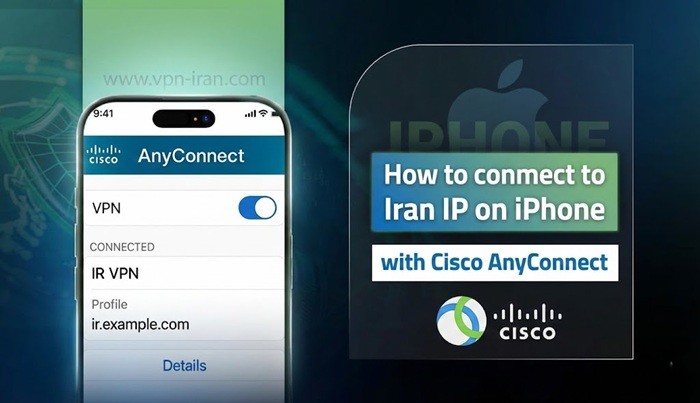
To connect to an Iran IP using Cisco AnyConnect on iPhone, first you must download and install the official app of this service from the App Store. After opening the app, by accepting the welcome message (“OK”), you will be transferred to the main page. In the next step, you must enter the settings section and disable the “Block Untrusted Servers” option so that the connection to servers that do not have official certificates is established correctly. After returning to the main page, by selecting Connections and adding a new VPN, enter a desired name (for example vpn-iran.com) in the Description section, and in Server Address, depending on your subscription type, enter one of the addresses 78.157.57.69 (non-financial) or 78.157.57.88 (financial). Save the settings and then turn on the AnyConnect VPN option. Finally, enter the username and password received from the store and press Connect so that your connection to the Iran IP is successfully established.
Steps to connect to an Iran IP on iPhone with Cisco AnyConnect
Similar to the tutorial for connecting to an Iran IP for Windows 7 with OpenVPN, you can also have an Iran VPN on iPhone through other apps. After purchasing an Iran IP, to connect to the Iran IP using the Cisco AnyConnect software, you must follow the steps according to the guide below. Please read the article to the end. You can download the software from the App Store.
1. Download cisco anyconnect software
Open your App Store.
Click on search
Search cisco anyconnect in the search box.

Install the Cisco AnyConnect software.

2.Open the Cisco AnyConnect software and proceed according to the images below. Select the Ok option.

Go to the Cisco settings section.

Turn off the “block untrusted servers” option and select the home option in the shape of a house at the bottom left.

Click on Connections.

Add a new connection by selecting the Add VPN Connection option.

In the Description section, choose a desired name for your VPN; for example, we have set vpn-iran.com. For the non-financial account, enter the server address in the Server Address section, which is currently 78.157.57.69. Then select the Save option in the top right section so the created connection is saved. For the financial account, also enter the following server address: 78.157.57.88.

Return to the main section of the software by selecting the AnyConnect> option at the top left.

Turn on the AnyConnect VPN option, which is in the shape of a circle

If you encounter the message below, select the Continue option.

Enter the username assigned to you, which has been emailed to you, in the Username section and select the Connect option.

Enter the password sent by the store in the Password section and select the Connect option.

If you have not purchased before and do not have a username and password, click here to purchase an Iran VPN account. This image shows your connection to the Iran IP.

Frequently Asked Questions
- How do I know if I have installed the correct version of Cisco AnyConnect?
To ensure that you have installed the official and secure version of Cisco AnyConnect, only use Apple’s App Store and make sure that its developer is “Cisco Systems, Inc.” Avoid installing versions with similar names from miscellaneous websites.
- If I have two accounts, financial and non-financial, do I have to change the server every time?
No, you can create two separate connections in the app. Simply save each with a different name and its specific server when adding a new VPN, and select the desired option at the time of connection.
- Why should I disable the Block Untrusted Servers option?
If this option is enabled, it prevents connection to some servers that are not correctly verified. Since the Iran IP server usually does not have an official certificate, you must disable this option to prevent connection errors.
- By turning on AnyConnect VPN, the circle did not light up; what is the problem?
It is possible that either you entered the server information incorrectly, or the device’s internet is disconnected. Check that the server is entered correctly and the internet connection is established. If the problem persists, close the app completely once and open it again.
- I have lost my username and password, do I have to buy an account again?
No, first check your email’s spam folder because the login information is often sent there. If it is not found, contact the store’s support so it can be sent to you again.
- If the Cisco AnyConnect software does not work in my country, what is the solution?
In some countries, restrictions may be applied to Cisco. In this case, you can use other tutorials available in the “Alternative Connection Methods” section of the site, which include various software and methods suited to different conditions.