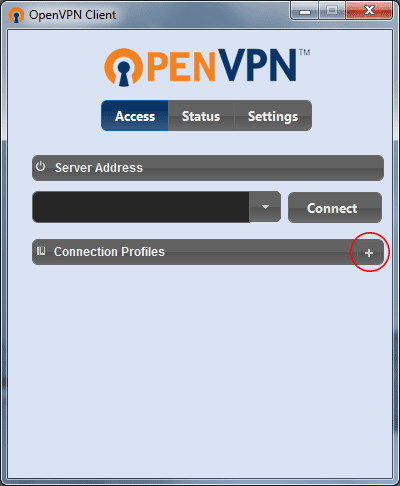
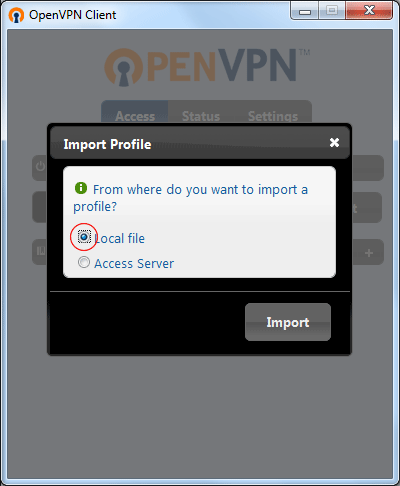
To set up OpenVPN on Windows 7, first you must download and install the software’s installation package from the provided link. After installation, it is time to receive the configuration files; depending on your subscription type (non-financial server or financial server), download one of the s1, s2, or sbank files. These files include the necessary settings for connecting to Iran VPN servers. After downloading, run the OpenVPN program and by clicking on the “+” button, select the Local file option and then Import. Go to the location of the configuration file, Import it, and Save the changes. Now, by clicking on the imported file, enter your username and password and check “Remember password during this connection.” Finally, click on Login so the connection to the Iran IP is established.
We have provided the steps for activating OpenVPN software for Windows from the download and installation stage to execution.
1.Download OpenVpn software To use OpenVPN on Windows 7, you must first download and install the program.
2.Download OpenVpn configuration
file Download the configuration file based on your subscription type from the link below. The non-financial server configuration file (without banking access) includes the following:
- Download s1 server configuration file (Click here)
- Download s2 server configuration file (Click here)
- Download sbank financial server configuration file (Click here)
3. Importing the Configuration File into the Application
After launching the OpenVPN application, click on the + icon to add configuration files. Select Local file, then click on Import.