1. Download the AnyConnect application for Iran VPN. (Click here to download)
2. Open and install the file Cisco-AnyConnect_VPN-IRAN.COM.msi.
3.After installation, open Cisco AnyConnect Secure Mobility Client from your Windows programs list.
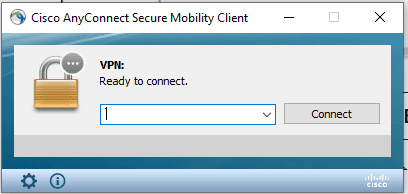
4. Click the gear icon in the bottom-right corner of the application to open Settings, then uncheck the option Block connections to untrusted servers.

Unchecking Block connections to untrusted servers
5. Enter the Cisco AnyConnect server address based on your account type:
Non-financial server address: 78.157.57.69
Financial server address: 78.157.57.88
Then click Connect.

6. You will receive a VPN connection warning. Click Connect Anyway.

7. After the connection starts, if you see another warning, click Connect Anyway again.
In the next steps, enter the username and password that were emailed to you.
8. If you encounter any errors, please use the other available methods for connecting to an Iran IP for users outside the country, which are listed in the Tutorials section.